
sysc-clipboard
Use encrypted clipboard history and check its persistence state.
sysc-clipboard captures clipboard selections through the Wayland data-control protocol and stores encrypted history. sysc-shell draws the history panel and restores selected entries.
Source: default-branch commit da2df5d4 · SYSC v0.1.3 pin: sysc-clipboard v0.1.3.
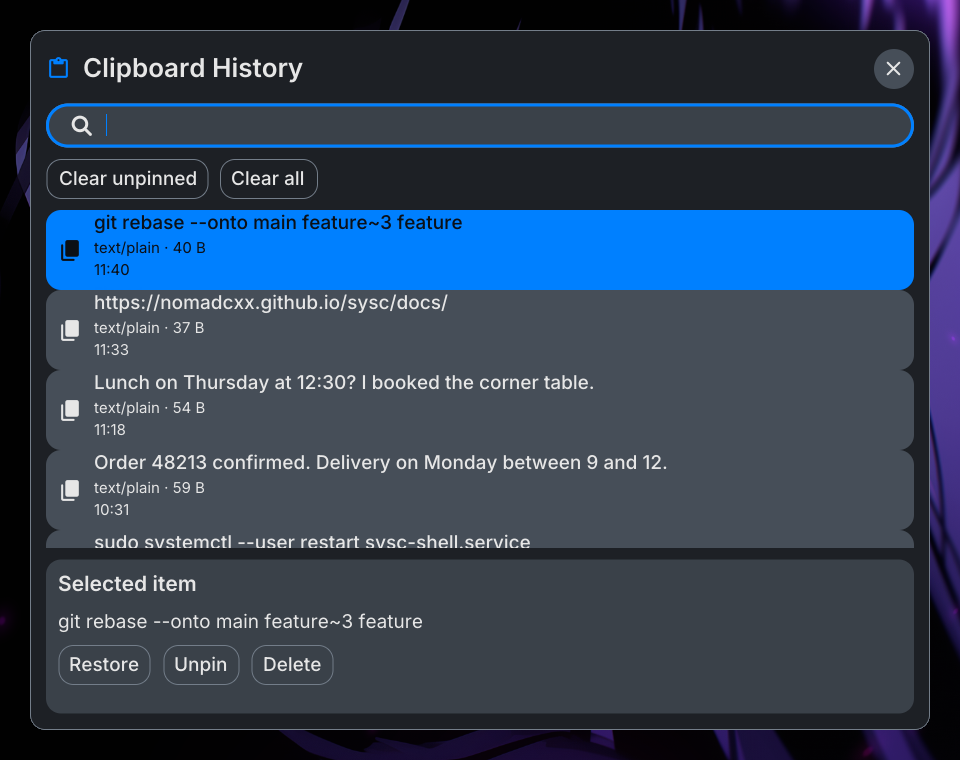
The panel above uses fixture entries.
Check history storage
The pinned release includes a persistence check that does not start the daemon:
sysc-clipboard --checkThe command prints the state directory, socket, entry count and persistence mode: durable, volatile or unavailable. Read the printed mode and warnings; a volatile or unavailable state can still exit 0, so the exit code alone does not establish durable storage. On first use, the check can initialize storage and create the Secret Service key; with --key-file it can create the key file as well. It does not start the daemon, connect to a running daemon or test Wayland availability. Invalid arguments exit 2.
The default state directory is $XDG_STATE_HOME/sysc-clipboard, falling back to ~/.local/state/sysc-clipboard. The service and its logs belong to the installing user:
systemctl --user --no-pager status sysc-clipboard.service
journalctl --user -u sysc-clipboard.service -b --no-pager
Privacy and limits
A Secret Service provider stores the encryption key. Without one, the daemon can create a random 32-byte key file on first use. The parent directory must be mode 0700 and the non-symlink regular key file mode 0600; keep the same key with the history because replacing it makes existing entries unreadable.
To use a key file with the suite service, add a user-unit drop-in:
systemctl --user edit sysc-clipboard.serviceSet its contents to:
[Service]
ExecStart=
ExecStart=%h/.local/bin/sysc-clipboard --key-file %h/.local/state/sysc-clipboard/clipboard.key
Then reload and restart the unit. The first invocation using that path creates the key and private directory. The --check command must use the same --key-file path to report this setup:
sysc-clipboard --key-file "$HOME/.local/state/sysc-clipboard/clipboard.key" --checkIf you use a custom XDG state directory, it changes the history path; this explicit key path stays where you set it.
The daemon stores up to 100 entries and 256 MiB. It excludes the primary selection and selections marked with the KDE password-manager hint. It supports ext-data-control-v1 and a zwlr-data-control fallback. Missing Secret Service access can make history volatile or unavailable; read the check output before relying on persistence.
The public Go client exposes restore, pin, delete, clear, thumbnail and resync operations, plus an update stream. See the client API for the pinned release. For the shell handoff and socket owner, read the service integration guide.
Clipboard backups
The encryption key and history must travel together. Back up the key and state directory as a pair before moving them to another machine or changing the Secret Service provider. If you replace the key, old entries cannot be decrypted. A corrupt manifest is quarantined and the daemon falls back to volatile history rather than deleting the clipboard service's remaining state.
Use --check after changing key or XDG paths. It reports which state directory and socket the process will use and whether persistence is durable, volatile or unavailable. The check can create the key on first use, but it does not test the running Wayland connection. Use the service journal for startup errors and the shell clipboard panel to confirm capture and restore.
The daemon does not capture the primary selection or selections marked with the KDE password-manager hint. It keeps at most 100 entries and 256 MiB. Text and image size limits apply per entry; a selection above those limits will not become a full history item. Treat clipboard contents and the encryption key as personal data when you create backups.