
Themes
Set the shell palette and understand which applications follow it.
Source: the current sysc-shell commit. SYSC v0.1.3 pins: sysc-shell v0.2.0 and sysc-lock v0.1.1.
sysc-shell owns its Material 3 palette. It can use a wallpaper-derived seed through matugen, a supplied seed colour or a saved palette. Theme templates can carry selected colours into supported application configs.
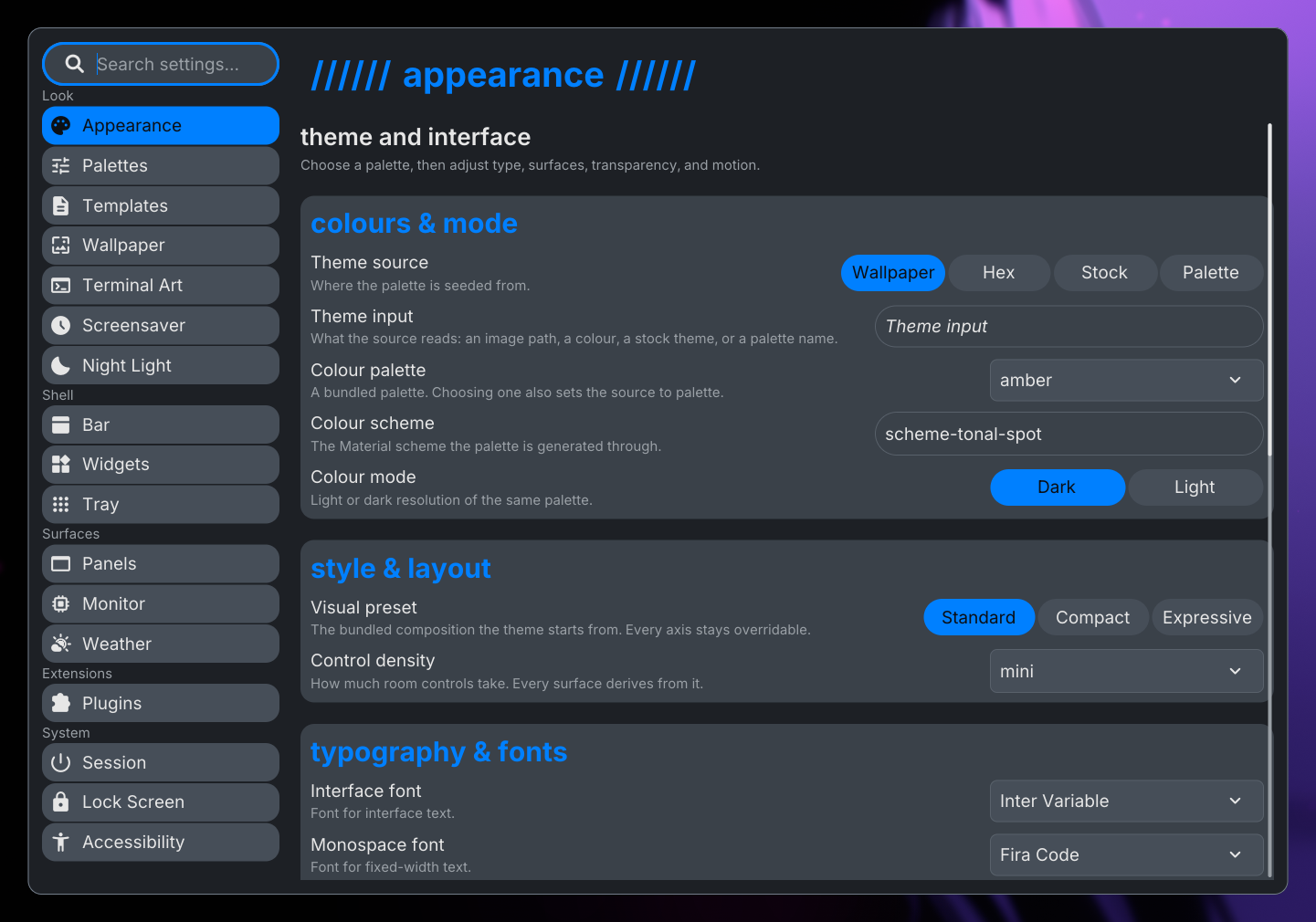
Change shell theme
On the SYSC v0.1.3 shell pin, open Settings → Appearance to select a theme source, input colour, scheme and light or dark mode. The source tree lists matugen as an optional tool for wallpaper colours.
The installed shell v0.2.0 includes Settings → Palettes for saving, importing and exporting named palettes, plus Settings → Templates for choosing application configs that follow the shell theme.
Back up an application config before enabling a template that writes it. The shell owns its palette and template selection; the target application owns its own settings file.
Shell and lock screen
The current shell source publishes a named palette choice to:
$XDG_CONFIG_HOME/sysc-shell/shell-themeIf XDG_CONFIG_HOME is unset, the path is ~/.config/sysc-shell/shell-theme. sysc-lock v0.1.1 follows a supported named shell palette at the next lock by default. To keep an independent lock palette, disable Follow shell theme in the shell's Lock Screen settings or set follow_shell to false in the locker config. Choosing a palette inside sysc-lock also disables following.
Generated and custom shell palettes do not map to a named locker palette in this version. The locker keeps its configured fallback.
Component palettes
sysc-terminal gets its effect theme from the sysc-Go registry and the shell's Terminal Art controls. sysc-walls has its own animation and theme settings. gSlapper chooses media and scaling; it does not own the shell palette.
See the wallpaper guide for output ownership and the sysc-shell manual for session diagnostics.